

This document describes how to use Knowledge Studio to discover and chat about relevant data assets, visually explore how those data assets are connected, and find answers about the data assets by using natural language. Knowledge Studio pairs a conversational chat interface with an interactive context graph to help you intuitively explore and navigate your entire data landscape.
This document is for data analysts, business analysts, and data stewards who want to query their enterprise metadata using natural language and visually navigate relationships about their data assets in a context graph.
How data exploration works
The New chat interface provides the following capabilities for interactive data discovery:
Natural language interface: Ask questions in English about your data estate (for example, "Which tables contain European customer churn metrics?").
Chat powered by Gemini: Powered by Gemini, the agent parses your natural language questions, runs search and metadata lookup tools against Knowledge Catalog, formulates multi-step exploration plans, and displays its progress in collapsible thought traces.
Context graph visualizer: Interactively navigate the relationships between datasets, tables, queries, and business terms. The visual graph displays the active nodes and entry links that constitute the working context set for your exploration session. Click nodes to inspect detailed column schemas, review active node drawer listings, or filter the graph by asset type.
BigQuery code assist execution: Validate data relationships by running generated SQL queries directly against your data warehouse from within the exploration interface.
The context graph visualizes semantic business relationships, glossary definitions, and verified join paths. It isn't an operational ETL pipeline execution viewer. To inspect pipeline transformation steps, runtime jobs, or operational data flows (such as Dataflow pipelines), view Knowledge Catalog data lineage. For more information, see Use data lineage.
Before you begin
-
In the Google Cloud console, on the project selector page, select or create a Google Cloud project.
Roles required to select or create a project
- Select a project: Selecting a project doesn't require a specific IAM role—you can select any project that you've been granted a role on.
-
Create a project: To create a project, you need the Project Creator role
(
roles/resourcemanager.projectCreator), which contains theresourcemanager.projects.createpermission. Learn how to grant roles.
-
If you're using an existing project for this guide, verify that you have the permissions required to complete this guide. If you created a new project, then you already have the required permissions.
-
Verify that billing is enabled for your Google Cloud project.
- Verify that your data assets exist. Knowledge Catalog automatically ingests structural and operational metadata from core Google Cloud services without requiring manual configuration. For organizations with bespoke knowledge bases, third-party governance tools, or on-premises systems, Knowledge Catalog provides flexible ingestion mechanisms:
- Optional: Verify that business glossaries and terms (such as business KPI definitions) are configured in Knowledge Catalog and linked to your underlying data assets. For more information, see Manage a business glossary.
- Enable the required APIs:
Required for core exploration:
- Dataplex API (
dataplex.googleapis.com): Required for opening Knowledge Studio, searching the catalog, and exploring the context graph and glossaries.
Required per feature (enabled on your project):
- BigQuery API (
bigquery.googleapis.com): For browsing BigQuery datasets and tables, inspecting query jobs, and running SQL queries. - Data Lineage API (
datalineage.googleapis.com): For browsing upstream and downstream data lineage and inspecting lineage processes. - Gemini Data Analytics API (
geminidataanalytics.googleapis.com): For using BigQuery conversational analytics and generating data distribution insights. - Google Documents API (
docs.googleapis.com): For reading Google Documents linked in chat prompts.
- Dataplex API (
Required roles
To get the permissions that you need to explore data assets and the context graph in Knowledge Studio, ask your administrator to grant you the following IAM roles on your project:
-
Core catalog search and context graph exploration:
- Dataplex Catalog Viewer (
roles/dataplex.catalogViewer) - Service Usage Consumer (
roles/serviceusage.serviceUsageConsumer)
- Dataplex Catalog Viewer (
-
Browsing BigQuery metadata and running SQL queries:
- BigQuery Metadata Viewer (
roles/bigquery.metadataViewer) - BigQuery Data Viewer (
roles/bigquery.dataViewer) - BigQuery Job User (
roles/bigquery.jobUser)
- BigQuery Metadata Viewer (
-
Using BigQuery conversational analytics:
- Gemini for Google Cloud Data Agent Stateless User (
roles/geminidataanalytics.dataAgentStatelessUser) - BigQuery Data Viewer (
roles/bigquery.dataViewer) - BigQuery Job User (
roles/bigquery.jobUser)
- Gemini for Google Cloud Data Agent Stateless User (
-
Browsing data lineage:
- Data Lineage Viewer (
roles/datalineage.viewer) - BigQuery Resource Viewer (
roles/bigquery.resourceViewer)
- Data Lineage Viewer (
For more information about granting roles, see Manage access to projects, folders, and organizations.
You might also be able to get the required permissions through custom roles or other predefined roles.
Grant roles to your user account
If you have the necessary permissions to manage Identity and Access Management (IAM)
access in your project, you can grant these roles to your own user account. To
grant roles, use the gcloud projects add-iam-policy-binding
command:
Before using any of the command data below, make the following replacements:
- PROJECT_ID: your Google Cloud project ID.
- USER_EMAIL: your user account email address (for example,
name@example.com).
Execute the following command:
Linux, macOS, or Cloud Shell
gcloud projects add-iam-policy-binding PROJECT_ID \
    --member="user:USER_EMAIL" \
    --role="roles/dataplex.catalogViewer"

gcloud projects add-iam-policy-binding PROJECT_ID \
    --member="user:USER_EMAIL" \
    --role="roles/serviceusage.serviceUsageConsumer"

gcloud projects add-iam-policy-binding PROJECT_ID \
    --member="user:USER_EMAIL" \
    --role="roles/bigquery.metadataViewer"

gcloud projects add-iam-policy-binding PROJECT_ID \
    --member="user:USER_EMAIL" \
    --role="roles/bigquery.dataViewer"

gcloud projects add-iam-policy-binding PROJECT_ID \
    --member="user:USER_EMAIL" \
    --role="roles/bigquery.jobUser"

gcloud projects add-iam-policy-binding PROJECT_ID \
    --member="user:USER_EMAIL" \
    --role="roles/geminidataanalytics.dataAgentStatelessUser"

gcloud projects add-iam-policy-binding PROJECT_ID \
    --member="user:USER_EMAIL" \
    --role="roles/datalineage.viewer"

gcloud projects add-iam-policy-binding PROJECT_ID \
    --member="user:USER_EMAIL" \
    --role="roles/bigquery.resourceViewer"
Windows (PowerShell)
gcloud projects add-iam-policy-binding PROJECT_ID `
    --member="user:USER_EMAIL" `
    --role="roles/dataplex.catalogViewer"

gcloud projects add-iam-policy-binding PROJECT_ID `
    --member="user:USER_EMAIL" `
    --role="roles/serviceusage.serviceUsageConsumer"

gcloud projects add-iam-policy-binding PROJECT_ID `
    --member="user:USER_EMAIL" `
    --role="roles/bigquery.metadataViewer"

gcloud projects add-iam-policy-binding PROJECT_ID `
    --member="user:USER_EMAIL" `
    --role="roles/bigquery.dataViewer"

gcloud projects add-iam-policy-binding PROJECT_ID `
    --member="user:USER_EMAIL" `
    --role="roles/bigquery.jobUser"

gcloud projects add-iam-policy-binding PROJECT_ID `
    --member="user:USER_EMAIL" `
    --role="roles/geminidataanalytics.dataAgentStatelessUser"

gcloud projects add-iam-policy-binding PROJECT_ID `
    --member="user:USER_EMAIL" `
    --role="roles/datalineage.viewer"

gcloud projects add-iam-policy-binding PROJECT_ID `
    --member="user:USER_EMAIL" `
    --role="roles/bigquery.resourceViewer"
Windows (cmd.exe)
gcloud projects add-iam-policy-binding PROJECT_ID ^
    --member="user:USER_EMAIL" ^
    --role="roles/dataplex.catalogViewer"

gcloud projects add-iam-policy-binding PROJECT_ID ^
    --member="user:USER_EMAIL" ^
    --role="roles/serviceusage.serviceUsageConsumer"

gcloud projects add-iam-policy-binding PROJECT_ID ^
    --member="user:USER_EMAIL" ^
    --role="roles/bigquery.metadataViewer"

gcloud projects add-iam-policy-binding PROJECT_ID ^
    --member="user:USER_EMAIL" ^
    --role="roles/bigquery.dataViewer"

gcloud projects add-iam-policy-binding PROJECT_ID ^
    --member="user:USER_EMAIL" ^
    --role="roles/bigquery.jobUser"

gcloud projects add-iam-policy-binding PROJECT_ID ^
    --member="user:USER_EMAIL" ^
    --role="roles/geminidataanalytics.dataAgentStatelessUser"

gcloud projects add-iam-policy-binding PROJECT_ID ^
    --member="user:USER_EMAIL" ^
    --role="roles/datalineage.viewer"

gcloud projects add-iam-policy-binding PROJECT_ID ^
    --member="user:USER_EMAIL" ^
    --role="roles/bigquery.resourceViewer"
You can run these commands in Cloud Shell or in a local terminal where the Google Cloud CLI is installed and initialized.
Open the exploration interface
In the Google Cloud console, go to Knowledge Studio (Preview).
The interface displays the following interface elements:
Sidebar: Lets you start a new exploration session (New chat), search previous chat sessions, or switch between the New chat, Context sets, and Enrichments interfaces.
Conversational chat window: Features a central prompt field with the model selector and starter prompt chips, such as What data do I have in Knowledge Catalog?.
Show graph panel icon: Opens or closes the Context graph panel.
Discover data assets using natural language
To search for data assets, in the New chat interface prompt field, enter a question, or click one of the starter prompt chips (for example, What data do I have in Knowledge Catalog?).
Gemini analyzes your request, runs internal discovery tools, and displays structured results in the chat panel.
Depending on your query, the chat response from the agent can include:
- Matching assets expanders: Displays interactive card summaries of the discovered data assets grouped by type (such as tables or glossaries).
- Text summaries: Describes the core datasets, tables, and glossaries found.
- Follow-up guidance: The agent suggests next steps, such as exploring specific domains or inspecting table schemas.
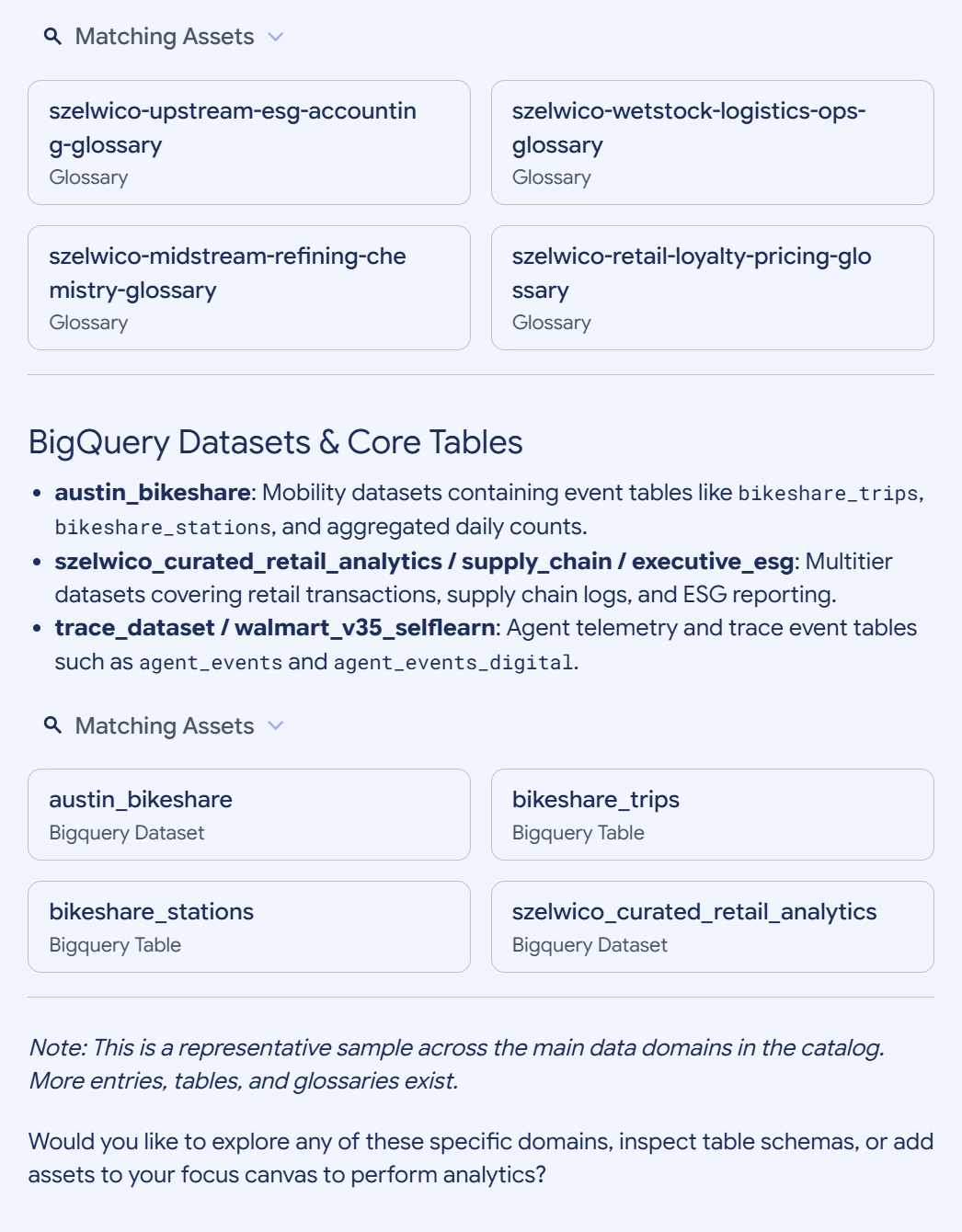
Figure 1. The chat response displaying matching assets, dataset summaries, and follow-up guidance. (Click the image to enlarge.) Optional: To inspect the agent's reasoning steps and internal tool calls, expand the Thinking section in the chat response. This section reveals a narrative explanation of the agent's multi-stage search strategy, including how it progresses from broad discovery queries to targeted asset filters. The following list shows some of the internal operations the agent might perform to answer your requests:
Catalog search: Queries Knowledge Catalog with precise project constraints, using keyword and semantic matching (for example, filtering by
type=datasetortype=context-set). For more information about the underlying mechanisms, see Search for data assets.Metadata retrieval: Retrieves schemas, descriptions, and lineage for matched entries. For BigQuery tables, it also fetches linked business glossaries and structurally related tables. For more information about the underlying API, see Retrieve context for data assets.
UI rendering: Formats the retrieved metadata as interactive cards in the chat panel.
Configure search scope and reasoning
To help Gemini provide the most accurate answers while minimizing the time you wait for a response, you can restrict the agent's target environment and reasoning complexity using the drop-down controls beneath the chat prompt box:
Explore data across: Limits the agent's internal search operations to one or more specific Google Cloud projects.
Choose this option when you have a large Knowledge Catalog footprint and you know exactly which projects contain your target data assets. Filtering by projects significantly speeds up discovery and prevents the agent from hallucinating or returning similarly-named tables from test or staging environments. Leave this set to All projects if you don't know where the data resides.
Thinking level: Controls how deeply the agent reasons about your prompt, dictating how exhaustively it evaluates query possibilities and iterates on search results before responding to you.
Choose this option when you need to balance response speed against the thoroughness of the search. * Select Low for fast, direct, and straightforward keyword lookups where the asset name is known. * Select Medium for typical exploration workflows where the agent might need to perform one or two follow-up queries. * Select High for complex, vague, or ambiguous questions where the agent must execute a multi-stage search strategy, evaluate the initial results, and refine its queries before returning a final answer.
Run specialized analytical agents
By default, the chat powered by Gemini limits queries to structural metadata and descriptive catalogs. If your question requires deep data analysis or running queries against actual table data, you can invoke specialized analytical agents by adding specific mentions directly into your chat prompt.
The following list shows the supported analytical agents and their capabilities:
@BqJobs: Invokes the BigQuery Query Job agent. When included, this grants the chat powered by Gemini permission to execute SQL statements directly against your tables. Use this mention when you want the agent to answer your question by querying the data rather than just reviewing metadata.Google Document links: Pasting a Google Document link into the chat allows the agent to read the document's contents. You must have Google Drive Viewer access to the linked document, and the Google Drive API must be enabled on your project.
@BqCA: Invokes the BigQuery Conversational Analytics agent. When included, this transfers your analytical questions (for example, about trends, aggregations, or complex business intelligence workflows) alongside your table context to a highly specialized subagent capable of performing advanced, multi-step SQL reasoning.
For more information about the capabilities, required permissions, and pricing for these subagents, see Conversational analytics in BigQuery.
Visualize semantic relationships
The context graph acts as an interactive canvas where you can view technical storage resources and their relationships to logical business semantics.
Explore data connections
To actively explore and expand semantic relationships on the graph canvas, you first need to load the graph.
To load an initial context graph from the chat results, click any entry card in the Matching assets tile. The Context graph panel displays an interactive topological graph for that data asset and its connected entities.
For example, to understand how a context graph maps business logic to data
storage, consider the szelwico_curated_retail_analytics graph shown in
Figure 2.
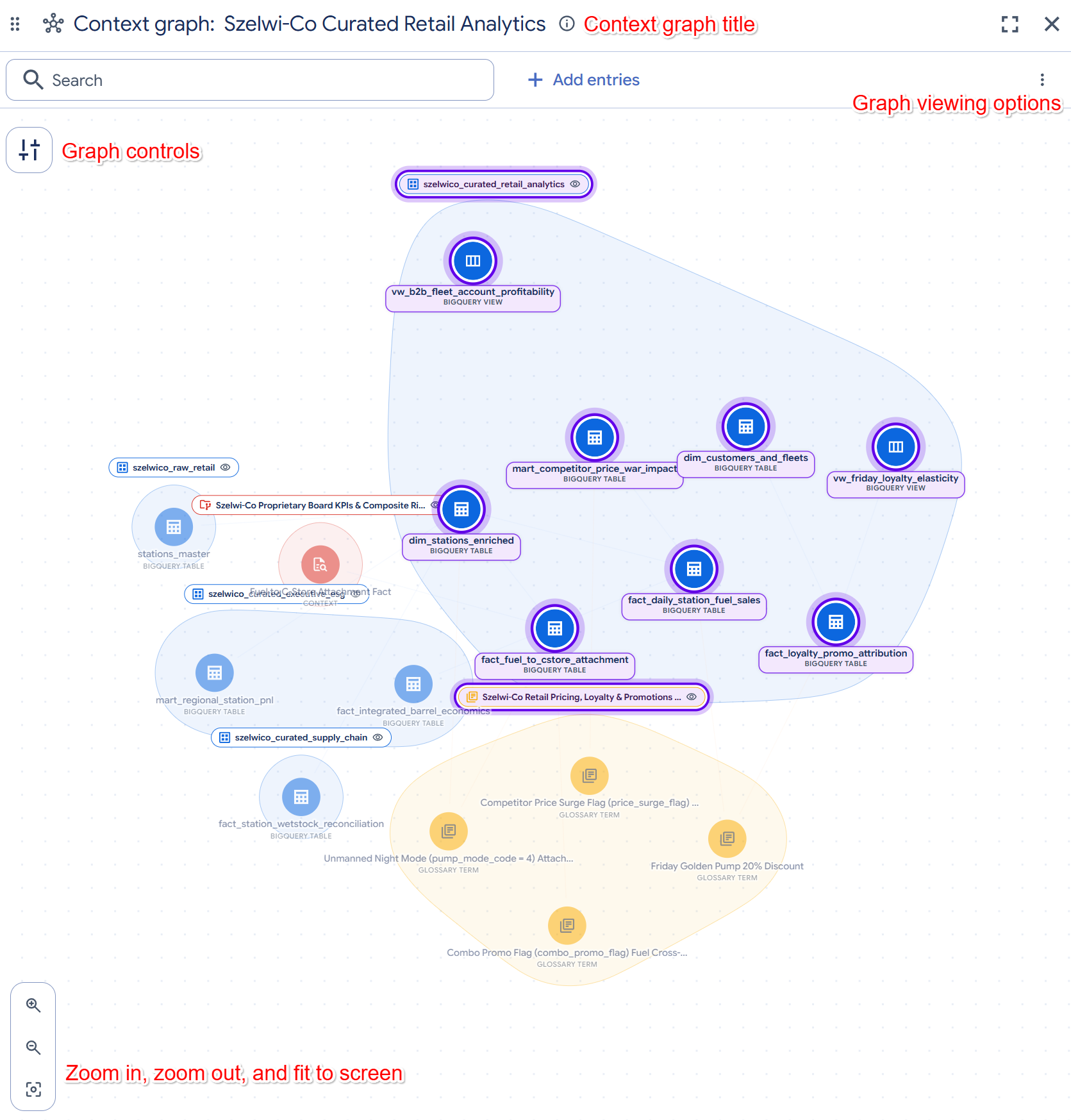
This graph serves as a reporting and analytics data warehouse for a retail gas station network and convenience stores.
The graph unifies technical data assets and business rules into a single view:
- Core fact tables: Blue BigQuery nodes represent
transactional data, such as daily fuel sales
(
fact_daily_station_fuel_sales) and loyalty program performance (fact_loyalty_promo_attribution). - Dimension tables: Additional blue nodes represent enriched dimension
tables, such as stations (
dim_stations_enriched) and customer fleets (dim_customers_and_fleets). - Governed business logic: Yellow nodes represent glossary terms that define strict calculation rules for the data. For example, the Friday Golden Pump 20% Discount node defines how to calculate a net post-discount charge for loyalty members.
- Relationships: The lines between the nodes illustrate how tables join together, such as how the station dimension table joins to the daily fuel sales fact table.
Context graph canvas
The context graph canvas provides the following primary UI areas to help you explore data topology:
- Canvas header: The top header menu displays the active node count
and the context set title, and provides layout and rendering options:
- Search entries field: Enter keywords into the Search entries by name, dataset, or description field to search for and manually add new data assets directly to the canvas layout.
- Full screen icon: Use the icon to expand the canvas viewport to fill your entire screen.
- Graph viewing options: Click the More options
()
icon to open a menu to manage rendering. It provides the following toggles:
- Focus nodes only: Hides surrounding connections to highlight only the nodes in context.
- Show edges: Toggles the visibility of all edge relationship lines to declutter and speed up dense graphs.
- Highlight containers: Emphasizes structural database groupings, such as datasets or glossaries, that nodes sit inside.
- Show explorer: Toggles the visibility of the node list sidebar explorer.
- Open graph legend: Displays definitions for the visual vocabulary of the graph.
- Graph filters: Click the Graph controls
() icon to open
the Filters panel, which lets you control graph density by filtering
connections. It provides the following filter categories:
- Types: Filter nodes by entity type (such as Tables & views, Glossary terms, Data products, or Context).
- Relationships: Filter the colored edges connecting nodes by their relationship type (such as Schema join, Related, Definition, Context, or Packages).
- Lineage: Control the visibility of data lineage edges, including toggles for Upstream (lineage flowing into a node) and Downstream (lineage flowing out of a node).
- Isolated nodes: Choose to display All nodes, Hide unconnected nodes, or display Only isolated nodes.
- Hop depth: Select an anchor node on the canvas to measure distance from, and then select a numerical distance (such as 1, 2, 3, or All) to filter out any nodes that are further away from your anchor.
- Canvas zoom controls: The bottom-left corner of the canvas provides
view controls to manage your viewport rendering:
- Zoom controls: Use the Zoom in () and Zoom out () buttons to scale the graph.
- Fit to screen: Use the icon to resize the graph layout to fit securely within your viewport.
Understand graph visual elements
The context graph uses specific colors, icons, and edge styles to represent different types of data assets and their relationships. To view definitions for the visual vocabulary of the graph, click the More options () icon and select Open graph legend.
Node states
Nodes display badges to indicate their current state on the canvas:
- Selected: The entry you are inspecting. The rest of the graph dims so its connections stand out.
- In agent focus: Part of your focus: the working set you and the agent are exploring.
- Expanding: Indicates the system is loading the entries related to this one, such as lineage, joins, and glossary terms, and adding them to the graph.
Data source color coding
The color of a node indicates its underlying data source or entity type:
- Blue: BigQuery (tables, views, datasets).
- Teal: Lakehouse (catalogs, namespaces, tables, views).
- Yellow: Glossary, Catalog, or Knowledge Catalog (glossaries, terms, catalogs).
- Brown: Database or Storage (Spanner, AlloyDB, Cloud Storage).
- Pink: dbt (models, semantic models, tests, macros, exposures).
- Orange: Data product.
- Red: Context (context sets).
- Green: Looker (LookML projects, models, explores, views).
- Grey: Custom assets (custom entry groups and unsupported entry types).
Relationship edges
The lines connecting nodes represent semantic relationships. You can filter these edges using the Filters panel (as described in Explore data connections):
- Schema join: Blue edges that map verified multi-table join paths, primary keys, and foreign keys.
- Definition: Orange edges that connect underlying table columns directly to certified business glossary terms and KPI formulas.
- Context: Grey edges that attribute specialized context to a target data asset.
- Packages: Grey edges showing which data assets are bundled into a specific data product.
Add entries manually to the context graph
Instead of relying solely on chat commands, you can manually seed the context graph with specific data assets directly from the canvas interface. This is useful when you already know which resources you want to connect and visualize.
To search for and add specific assets to the graph, do the following:
- To search for entries, click the Search entries by name, dataset, or description field located directly in the canvas header.
- Optional: To change the target project, in the Project drop-down menu, select a Google Cloud project (by default, this is set to All projects).
- Enter a keyword, dataset name, or entry description.
- To place a node onto your canvas, click the required entry from the matching search results drop-down list. The graph updates to show the new node and automatically maps any existing semantic or structural relationships.

Explore connections for a specific node
To view metadata details, expand relationships, or access additional actions for an individual node on the active canvas, you can interact directly with the node using different mouse clicks.
To interact with a specific node, use one of the following methods:
View metadata: To open a side panel displaying detailed metadata (such as connected nodes) for the selected asset, single-click the node.
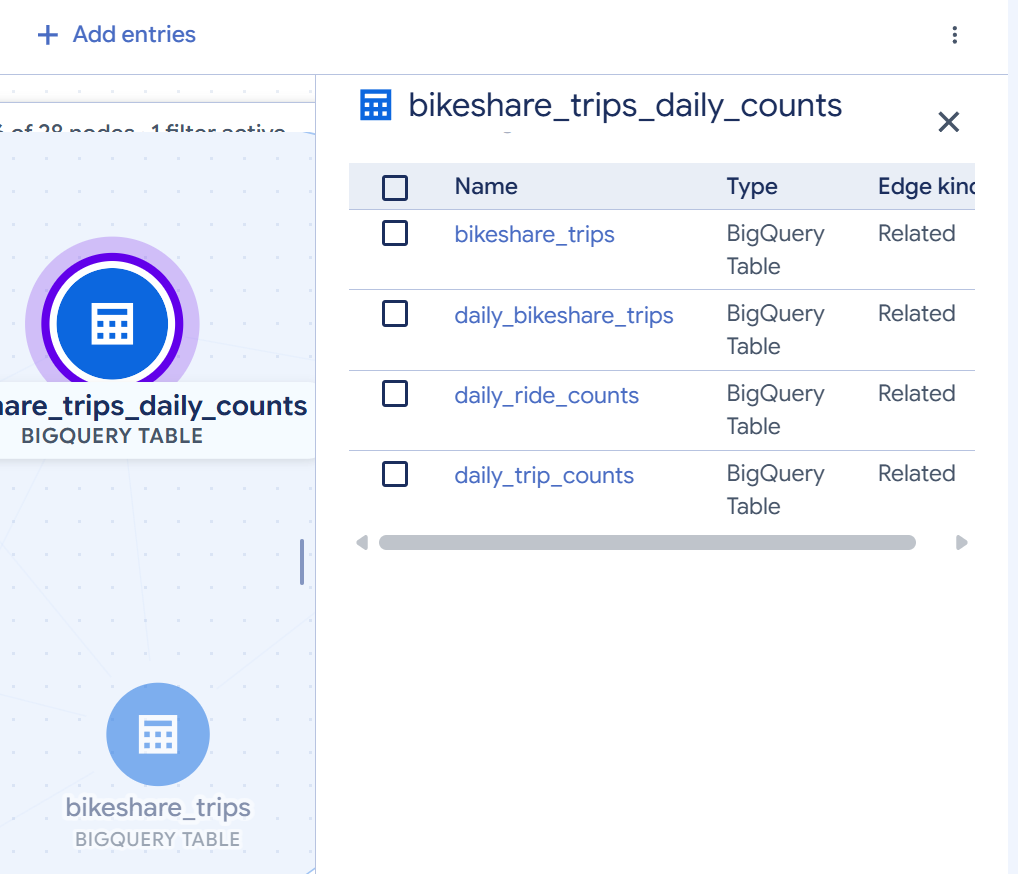
Figure 4. A node's metadata details side panel. (Click the image to enlarge.) Open more options: To access additional actions such as tracing lineage or removing the node, right-click the node to open its context menu. From this menu, you can select the following actions:
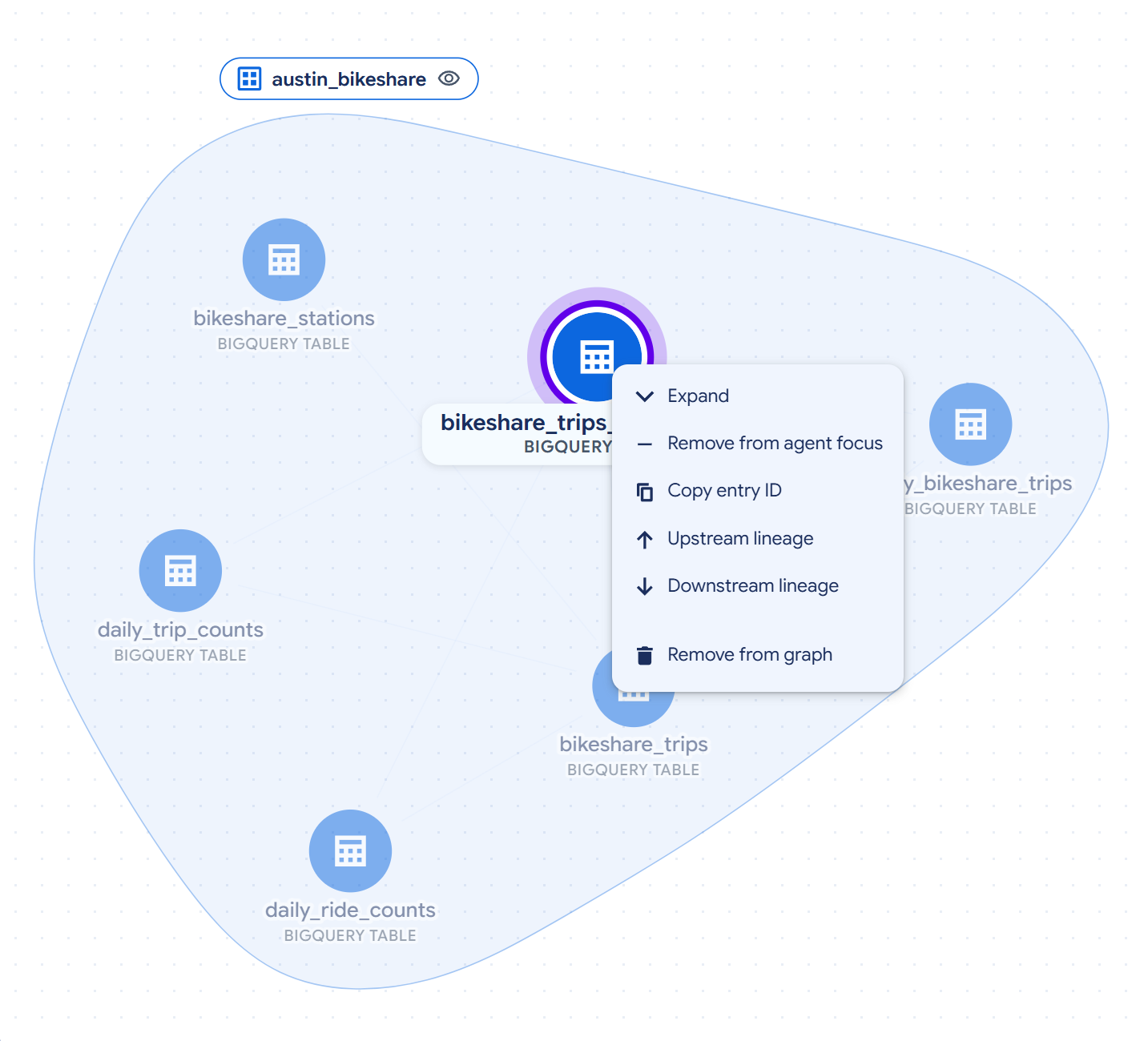
Figure 5. A node's context menu. (Click the image to enlarge.) - Expand: Fetches and reveals immediate neighbor connections by relationship type.
- Remove from agent focus: Excludes the node from the working set you and the agent are exploring.
- Copy entry ID: Copies the unique identifier for the asset.
- Upstream lineage: Traces and expands data lineage flowing into the node.
- Downstream lineage: Traces and expands data lineage flowing out of the node.
- Remove from graph: Removes the node from the active canvas.
Expand relationships: To expand all relationships at once (revealing all connected tables, views, and glossary terms), double-click the node. The node displays a collapse badge (
-) indicating that its connections are expanded. To collapse the relationships, double-click the node again.
Query and expand the active context
The chat powered by Gemini maintains conversational context across prompts. Because the active context graph is held in working memory, you can ask follow-up questions, expand the graph outward, or generate queries without repeating earlier details.
Ask questions about in-context assets
When you ask about assets already on the canvas, the agent inspects the in-memory context graph directly without re-invoking the discovery tools.
To ask a question about an asset on your canvas, do the following:
In the prompt field, enter a question about connected business terms or metadata for an asset on your canvas, and then click Send. For example:
Are there any glossaries connected to TABLE_NAME?Replace TABLE_NAME with the name of a table or data asset loaded in your context graph (for example,
customers).The agent inspects the active context graph in memory and returns a conversational summary of connected business glossary terms and column relationships without re-querying the catalog.
Optional: To answer questions using external knowledge, provide a link to an external Google Doc in your prompt. The agent can read the document contents and use that external knowledge to answer your questions.
Traverse and expand the semantic graph
When you ask to explore new or deeper relationships beyond the active graph, the agent dynamically switches its tool strategy to discover connections such as schema joins, glossary definitions, or custom semantic documentation.
To trace relationships outward from a business concept or entity, do the following:
In the prompt field, enter a request to trace relationships outward, and then click Send. For example:
Show how my data is connected to GLOSSARY_TERMReplace GLOSSARY_TERM with the name of a business glossary term in your catalog (for example,
Customer Value).The agent traverses semantic graph edges—such as query-based
schema-joinlinks,definitionlinks for glossaries, orpackagesfor Data Products—and adds the newly discovered tables to the canvas. The graph centers on the newly explored glossary node, renders its semantic links, and updates the Active nodes counter.
Generate SQL and inspect distributions
While exploring assets in the chat interface, you can perform deep-dive analysis directly against your data using inline BigQuery conversational analytics.
To generate a query and inspect data distributions using the active context, do the following:
In the prompt field, ask the agent to write a query using the visible nodes, and then click Send. For example:
Generate a query to calculate average customer balance by region
using the active tables.
The agent uses the active context graph as grounding to generate context-aware SQL containing verified join keys (such as
customer_idandregion_id).Optional: To evaluate data distributions, ask the agent for statistical summaries.
The agent can execute queries and render inline data distribution charts within the chat window to help you evaluate data distributions before writing custom code.
Manage your chat history
Knowledge Studio automatically saves your exploration sessions, letting you search, resume, or delete previous chats directly from the navigation pane.
To view or manage your chat history, do the following:
- In the Knowledge Studio navigation pane, ensure the Recent section is expanded.
- To locate a specific past conversation, in the Search chats field, enter keywords related to the chat's previous questions or context.
- To resume an exploration session, click the name of the chat in the list. This restores your previous chat thread.
- To delete a past conversation, point to the chat name in the list, and then click the Delete icon.
What's next
Enrich context with Knowledge Studio
Learn how to orchestrate rich data context, build context sets, and ground AI agents using Knowledge Studio interfaces.
About data context
Understand how active context transforms passive metadata to ground AI agents and prevent hallucinations.
Generate insights for structured data
Mine query logs to automatically generate column descriptions, table summaries, and recommended joins.
Search for resources
Find and explore catalog resources across Google Cloud and third-party systems using natural language.
About enrichment tasks
Learn how to configure AI-driven metadata extraction workflows to build data context automatically.
Ground agents with MCP
Connect AI agents and developer tools to Knowledge Catalog using Model Context Protocol.