

This page describes the key components of the query plan visualizer.
The query plan visualizer in Google Cloud console helps you understand the structure of the execution plan that Spanner chooses to evaluate a query.
The visualizer displays the plan as a visual graph, making it easier to analyze how Spanner executes your queries and identify potential performance bottlenecks. You can use the query plan visualizer to do any of the following:
- Debug slow queries: pinpoint which part of the query plan takes the most time or resources.
- Validate optimizations: compare query plans before and after making changes (like adding an index or rewriting a join) to verify improvements.
- Understand query behavior: learn how Spanner processes complex SQL statements, including joins, aggregations, and distributed operations.
Benefits of using the query plan visualizer
Query plans can be complex. The visualizer simplifies analyzing plans by providing the following features:
- Graphical representation: displays the flow of data from tables and indexes through various operators to the final result.
- Performance insights: identifies expensive operators with visual cues for high latency and CPU consumption.
- Row count visualization: shows data volume at each step with line thickness indicators.
- Detailed statistics: provides specific runtime statistics for each operator.
Access the query plan visualizer
You can access the query plan visualizer in the Google Cloud console through either of the following methods:
- Spanner Studio: generate a live, on-demand query plan while writing and testing queries.
- Query insights: view historical, sampled query plans captured from production workloads over time.
View an on-demand plan in Spanner Studio
To view a query plan on-demand for a query in Spanner Studio:
In the Google Cloud console, go to the Spanner Instances page.
Click the name of the instance containing the database you want to query.
In the Databases list, click the name of your database.
In the navigation menu, click Spanner Studio.
In the editor pane, enter your SQL query.
Click Run.
Click the Explanation tab.
View a sampled plan in Query insights
To view a historical, sampled query plan in Query insights:
In the Google Cloud console, go to the Spanner Instances page.
Click the name of the instance containing the database you want to investigate.
In the navigation menu, click Query insights.
Select the database and time range you want to analyze.
In the TopN queries table, click the query or request tag you want to inspect.
In the Query plans samples graph, click a sample dot representing a query execution.
In the Query plan visualizer section, view the visual execution plan.
Navigate the visualizer
The visualizer displays the query plan as a directed acyclic graph (DAG).
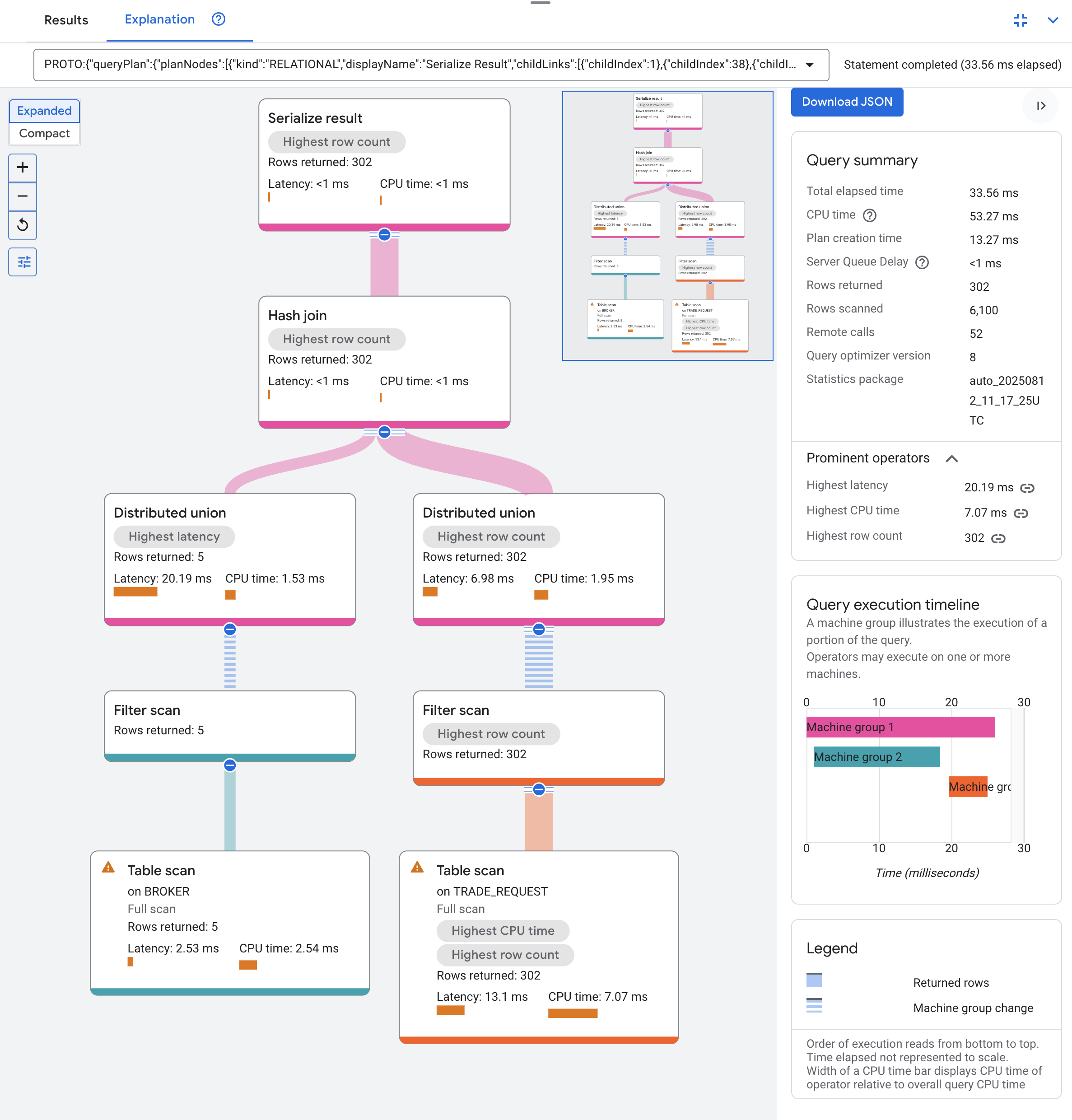
The query plan visualization might be large, depending on the query you executed. To hide or show details, click the Expanded/Compact view selector. To zoom in or out, use the zoom control.
The visualizer interface provides the following information panels:
To download the visualized query plan, click Download JSON. To view the query plan at a later time, you can import the downloaded JSON profile back into Spanner Studio. If you need to troubleshoot performance issues, then share the JSON file with the Spanner support team.
Query plan acyclic graph
The logic that Spanner uses to run the query appears as a DAG. The graph displays data flow from the bottom up. Tables and indexes appear at the bottom, and the final query output appears at the top.
Each node in the graph is represented by a card. Each card represents an iterator that consumes rows from its inputs and produces rows for its parent.
Lines that connect the cards represent the flow of rows between iterators. The line thickness indicates the relative number of rows passed. Thicker lines indicate more rows.
Each card on the graph contains the following information:
- Iterator name: the name of the iterator.
- Runtime statistics: the number of rows returned, the latency, and the CPU usage.
Click a card to view more information about the latency, CPU usage, rows returned, execution count, and machine group count.
For more information about operators, see Query execution operators.
Spanner queries often retrieve data from multiple database splits. A machine group represents a set of contiguous query execution operators that execute together for a set of splits. Within a single machine group, operators execute sequentially from the bottom up, whereas different machine groups execute in parallel. When data moves between splits across machine group boundaries, it travels through remote procedure calls (RPCs).
For more information about splits, see Database splits.
The visualizer helps you distinguish between logical and physical distribution:
- Logical boundaries: Cards labeled Distributed indicate where the query planner split the query logic.
- Physical distribution: The machine group colors on the graph represent actual physical execution derived from runtime statistics.
Physical boundaries often align with logical distributed operators, but they can differ depending on how splits are placed across servers.
Query summary
The Query summary pane provides the following high-level execution metrics and highlights potential bottlenecks in the query:
- Total elapsed time: the total time taken to run the query from start to finish.
- CPU time: the cumulative CPU time consumed across all threads and servers processing the query.
- Plan creation time: the time the query compiler and optimizer spent generating the execution plan.
- Server queue delay: the duration the query spent waiting in server queues before processing began.
- Rows returned: the total number of rows returned in the final query result.
- Rows scanned: the total number of rows read from storage across all scanned tables and indexes.
- Remote calls: the total number of RPCs made between splits or machine groups.
- Query optimizer version: the version of the Spanner query optimizer used to compile the plan.
- Statistics package: the optimizer statistics package used for cost-based optimization.
Prominent operators
The Prominent operators section highlights the most resource-intensive iterators in the query plan:
- Highest latency: the operator with the longest execution duration.
- Highest CPU time: the operator that consumed the most CPU time.
- Highest row count: the operator that processed or returned the most rows.
Query execution timeline
The Query execution timeline tab displays a time-based graph that shows how long each machine group executes its portion of the query. A machine group might not run for the entire query duration, or it might run multiple times. However, the timeline displays only the start time of its initial execution and the end time of its final execution.
Visual cues for performance
The visualizer uses the following colors and icons to help you spot issues:
- Red bars: indicate the percentage of latency or CPU time consumed by that operator relative to the total query.
- Warning triangles: indicate that a full table scan occurred. Such scans often suggest an opportunity to optimize the query, for example, by adding a secondary index.
- Machine group colors: differentiate machine groups and highlight transitions between groups. These transitions require remote execution across different machines, which incurs serialization and network overhead. The query execution timeline also displays these machine group colors.
What's next
- Learn how to tune a query using the query plan visualizer.
- Read about specific Query execution operators.
- Understand Query execution plans in depth.