Connect and store data to a warehouse
Stay organized with collections
Save and categorize content based on your preferences.
One of the data destination components you can add to your app is a
Vision Warehouse to store streamed and processed data.
Console
Open the Applications tab of the Gemini Enterprise Agent Platform Vision dashboard.
Go to the Applications tab
Select View app next to the name of your application from the list.
From the side list of components, choose Vision AI Warehouse from the
list of Connectors. The warehouse node is added to the app graph and a
side Vision AI Warehouse menu opens.
Select Connect warehouse.
If you choose to
radio_button_checkedCreate a new
warehouse, enter a warehouse name and select a
[time to live (TTL)][ttl-link]{: .external}. Then click Create.
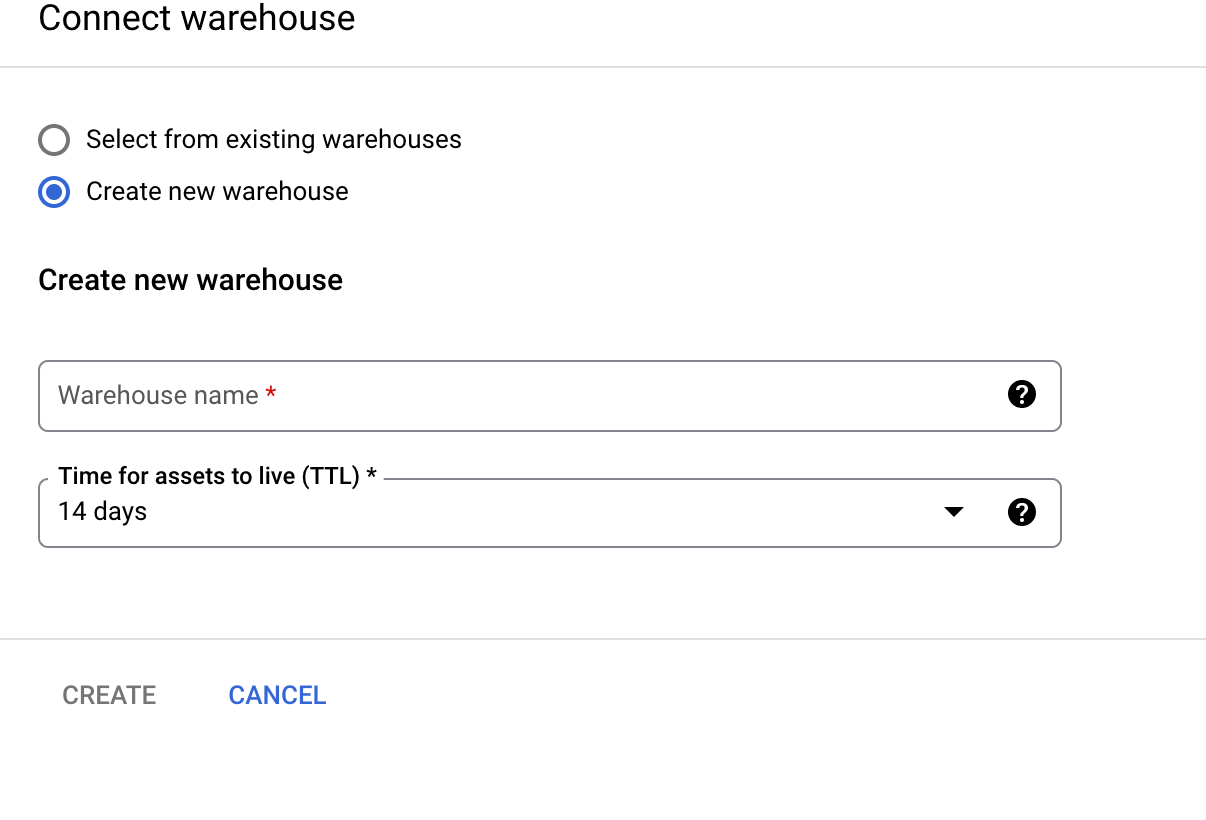
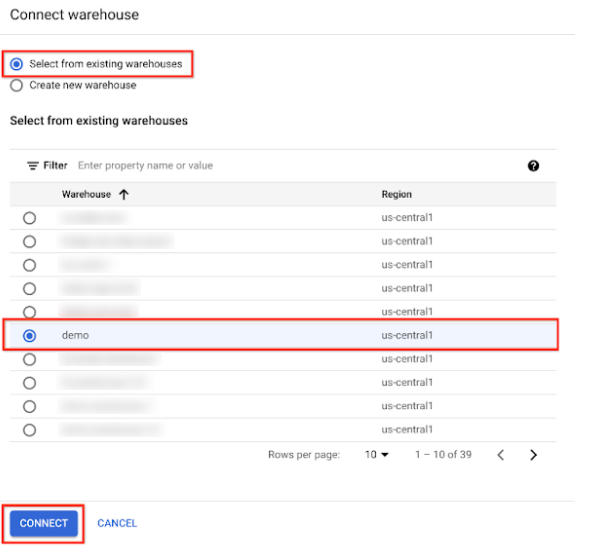
If you choose to
radio_button_checkedSelect from
existing warehouses, select the button next to your warehouse and
click Connect.
Except as otherwise noted, the content of this page is licensed under the Creative Commons Attribution 4.0 License, and code samples are licensed under the Apache 2.0 License. For details, see the Google Developers Site Policies. Java is a registered trademark of Oracle and/or its affiliates.
Last updated 2026-08-11 UTC.
[null,null,["Last updated 2026-08-11 UTC."],[],[]]

