

Bullet charts evaluate a single primary metric's performance as one or more bars, mark your goal with a target line, and plot both against shaded background ranges that represent performance thresholds (like "poor," "satisfactory," and "good"). Bullet charts let you instantly assess both the metric's progress and its overall performance at a glance without cluttering your dashboard.
The following example of a bullet chart highlights how a measure, Orders Count, performs against key performance indicators for a daily progress report, which is represented by Orders Created Date. This chart shows the number of orders received for July 22, 2026 (44 orders), against a "poor" range of 5 orders, an "average" range of 25 orders, and a target of 40 orders.
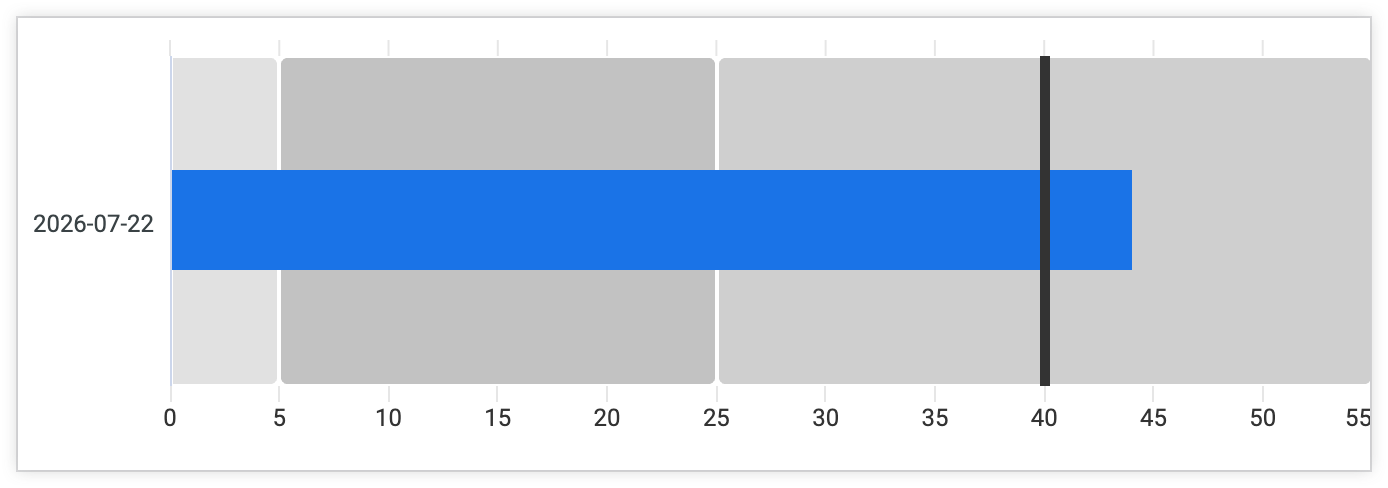
The chart lets you know that the count of orders exceeds the "poor" and "average" ranges for daily orders, and exceeds the daily goal of 40 orders.
This page describes the options for editing bullet charts in the visualization menu.
Building a bullet chart
Bullet charts require the following data configuration in an Explore:
- One dimension
- One measure
To use a bullet chart, select the Bullet option from the Explore Visualization pane. Next, select the Edit button on the Visualization pane to edit the chart.
Once in edit mode, you can make selections in the Plot and Series menus to customize the appearance of the bullet chart, such as displaying a target value, or setting up to three range limits.
Plot menu options
The Plot menu includes the following options.
Visualization Theme
Sets the theme for the visualization. You can choose either Classic or Modern from the Visualization Theme menu to access the color palettes for each theme on the Series menu.
Orientation
Use the Orientation menu to set the orientation for the bullet chart. Options include Vertical or Horizontal. Bullet charts are displayed horizontally by default.
Show legend
Turn on this setting to display the chart legend.
Show Labels
Turn on this setting to display labels for the bullet chart. Turning on this setting reveals the following configuration settings for labels:
- Label Font Family: Sets the font family of the label font.
- Label Font Size: Sets the font size of the label font. You can set the font size of value labels using any valid CSS size. For example, you can specify a number of pixels, such as
10pxor12px. Label Font Color: Sets the color of the label. Click the color swatch in the Value Color section to open the color picker menu.
- To pick a color from a palette, click the Palettes tab of the color picker menu, and then use the left and right arrows to scroll through the available palettes. Select a color by clicking on a color in one of the palettes.
- To select a custom color, click the Custom tab of the palette picker, and then either use the color gradient and value slider to choose a custom color, or enter an RGB hex string, such as
#2ca6cd, or a CSS color name, such asmediumblue, into the input field.
Show Ranges
Turn on the Show Ranges setting to display the range limits for the bullet chart. Ranges often indicate "poor," "average," and "good" thresholds.
When the Range limits setting is enabled, Looker sets the range values for each range by default. You can set different range limits to better fit your data in the following fields:
- Range 1: Sets the threshold for the "poor" range.
- Range 2: Sets the threshold for the "average" range.
- Range 3: Sets the threshold for the "good" range.
Regardless of the limit that you set for Range 1, Range 2, and Range 3, Looker automatically sorts the range limits from the lowest value to the highest value so that all three ranges are displayed in the visualization. For example, if you set 10 for Range 1, 50 for Range 2, and 5 for Range 3, Range 3 will be displayed in the chart as the lowest ("poor") range.
You can customize the color of the range bands on the Style menu.
Show Target Marker
Turn on the Show Target Marker setting to display a target value for the bullet chart. When Show Target Marker is enabled, the following options are displayed:
Target Type: Sets the type of the target. Options include the following:
- Value: Set a specific numeric value as the target.
- Metric: Set the metric, or measure, value as the target.
Target Value: Sets the value of the target when Value is selected as the Target Type.
Target Metric: Displays the name of the measure when Metric is selected as the Target Type.
Target Marker Color: Sets the color of the target marker. Click the color swatch in the Value Color section to open the color picker menu.
- To pick a color from a palette, click the Palettes tab of the color picker menu, and then use the left and right arrows to scroll through the available palettes. Select a color by clicking on a color in one of the palettes.
- To select a custom color, click the Custom tab of the palette picker, and then either use the color gradient and value slider to choose a custom color, or enter an RGB hex string, such as
#2ca6cd, or a CSS color name, such asmediumblue, into the input field.
Target Width: Sets the width of the target line, in terms of percentage width of the chart's bar. For example, set the Target Width to 500% for the target line to span the entire width of the visualization.
Target Thickness: Sets the thickness of the target marker. The higher the value, the thicker the target marker.
Custom Tooltip
You can click the Custom Tooltip switch to configure tooltips within the Explore visualization editor by using a combination of UI settings and an HTML editor that supports Liquid templating. Learn more about Custom Tooltips.
Series
The Series menu includes the following options.
Colors
The Colors section includes the following options:
- Collection: Choose a color collection from the Colors Collection menu. A collection lets you create themed visualizations and dashboards that look good together. You can see all the palettes in each of Looker's built-in color collections on the Color collections documentation page. Your Looker admin may also create a custom color collection for your organization.
- Palette: To further refine a color collection palette or create a custom palette, click the Palettes tab of the color picker menu, and then choose one of the available palettes. Select a color by clicking on a color in one of the palettes. To select a custom color, click the Custom tab of the palette picker, and then either use the color gradient and value slider to choose a custom color, or enter an RGB hex string, such as
#2ca6cd, or a CSS color name, such asmediumblue, into the input field. - Reverse colors: When enabled, reverses the order of colors that are used from a palette. For a categorical palette, the Reverse colors setting applies the last color in the palette to the first series, the second-to-last color in the palette to the second series, and so forth. For a sequential or diverging palette, the Reverse colors setting applies the color at the right end of the palette to the first series and moves left on the palette for the remaining series.
- Blend Range Colors: Blends the colors that are set for each range band into a gradient when colors for each range band are set in the Range Band Colors section.
Range Band Colors
Click the Range Band Colors header to set the color for each range band.
To set the color of the chart value, click the color swatch for each range band, Range 1, Range 2, and Range 3, to open the color picker menu:
- To pick a color from the color collection palette, click the Palettes tab of the color picker menu, and then use the left and right arrows to scroll through the available palettes. Select a color by clicking on a color in one of the palettes.
- To select a custom color, click the Custom tab of the palette picker, and then either use the color gradient and value slider to choose a custom color, or enter an RGB hex string, such as
#2ca6cd, or a CSS color name, such asmediumblue, into the input field.
Customizations
By default, Looker displays the name of the measure in the bullet chart. To change the label for the measure, type a custom name in the Label field. This affects the chart legend and tooltips.