

A workflow run is an instance of a workflow that is executed by a trigger. The Runs tab in the workflow canvas lets you monitor and manage the execution logs of your workflow. Monitoring workflow runs is helpful for tracking automated tasks, debugging failed executions, and reviewing the performance of your workflow versions.
Before you begin
Before using this feature, ensure that a Gemini Enterprise administrator has enabled the Workflow Builder feature toggle in your app's feature management settings. For more information, see Manage web app features.
View runs for all workflows
To view all workflow runs for your web app, do the following:
App
- Open your Gemini Enterprise web app in a browser.
- In the web app navigation menu, click
 Agents.
 - The Agent Gallery page appears displaying all the prebuilt available agents and workflows in your web app.
Click Runs to view all workflow runs for your web app.
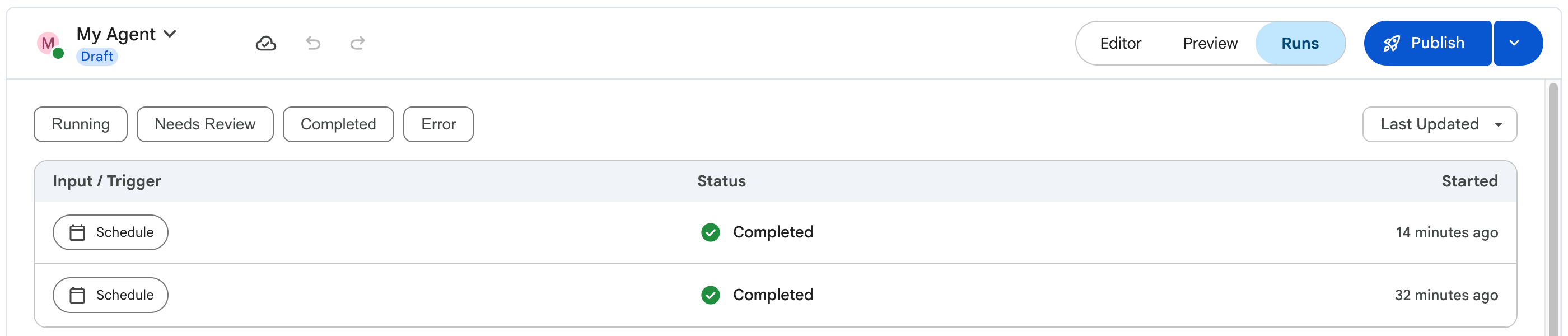
The Runs tab displays a list of all workflow runs for your web app as shown in the following image.

View runs for a specific workflow
To view the execution logs of a workflow, do the following:
App
- Open your Gemini Enterprise web app in a browser.
- In the web app navigation menu, click Agents.
- The Agent Gallery page appears displaying all the prebuilt available agents and workflows in your web app.
- Go to the Your agents section and click the workflow to view its execution logs.
Click the Runs tab.
The Runs tab displays a list of all executions, including simulations performed in the Preview tab and automated runs initiated by a trigger. Selecting an individual run from the list lets you view granular details about that specific execution, including the workflow version details.
Filter runs by status
App
In the Runs tab, use the filter chips at the top of the run list to filter by status. Available filters include the following:
- Running: Runs that are in progress.
- Needs Review: Runs that are paused at a human-in-the-loop step awaiting review.
- Completed: Runs that finished successfully.
- Error: Runs that encountered an error.
- Date: Filter runs by date range.
To apply a filter, click a filter chip. To remove the filter, click the chip again.
Understand the run details
The following table lists and describes the information that is displayed in the Runs tab.
| Field | Description |
|---|---|
| Input/Trigger | The trigger that started the run. |
| Status | The current state of the run, such as Completed, Running, or Error. |
| Started | The date and time when the run started. |
What's next
- Learn how to use human-in-the-loop steps.
- Learn how to manage workflow versions.
- Learn how to set up event triggers.