

Workflows are agents that you can build using Workflow Builder in your Gemini Enterprise web app. These agents are designed to execute a sequence of steps or actions, which can include a mix of AI automation and human intervention, based on a configured trigger. Workflow responses can be deterministic or non-deterministic based on the overall orchestration logic of the agent.
Workflows are ideal for the following use cases:
- Multi-step processes with defined sequence logic. For example, automating an employee onboarding checklist across tools like Gmail and Calendar.
- Tasks with AI automation and human approvals. For example, drafting a report with AI that requires a user sign-off before publishing.
- Complex orchestrations with conditional logic. For example, routing sales leads to different teams based on region and budget.
The following features are available in Workflow Builder:
- Create a workflow with natural language: Describe your workflow in plain language and generate a workflow scaffold automatically.
- Use workflow templates: Browse and start from prebuilt templates for common business use cases.
- Set up workflow triggers: Run workflows automatically when data changes in connected apps.
- Connect apps to agent steps: Enable read and write-back tools (such as Gmail, Jira, and Google Drive) within your Gemini Agent steps to search data, send messages, and manage records.
- Use flow control steps: Add conditional branching, data filtering, and loops to your workflow.
- Connect MCP servers: Connect MCP servers as workflow steps or as tools for Gemini Agent steps.
- Use human-in-the-loop steps: Add human review, approval, and information request steps to your workflow.
- Add existing agents to your workflow: Hand off tasks to other specialized AI agents within your workflow.
- Manage workflow versions: Save, share, compare, and restore workflow versions.
- Edit a workflow with natural language: Edit existing workflows by describing changes in natural language.
- View workflow execution logs: Monitor workflow runs with step-by-step execution traces.
- Share a workflow: Share live workflows with other users in your organization.
Supported connectors
Workflows support these connectors:
- Gmail
- Google Calendar
- Google Chat
- Google Drive
- Slack
- Jira
- ServiceNow
- Confluence
- OneDrive
- SharePoint
- Outlook
Before you begin
Before exploring these new features, do the following:
- Ensure that a Gemini Enterprise administrator has enabled the Workflow Builder feature toggle in your app's feature management settings. For more information, see Manage web app features.
- Ensure you have a Gemini Enterprise web app with the necessary data stores connected. For more information, see About apps and data stores.
Workflow canvas
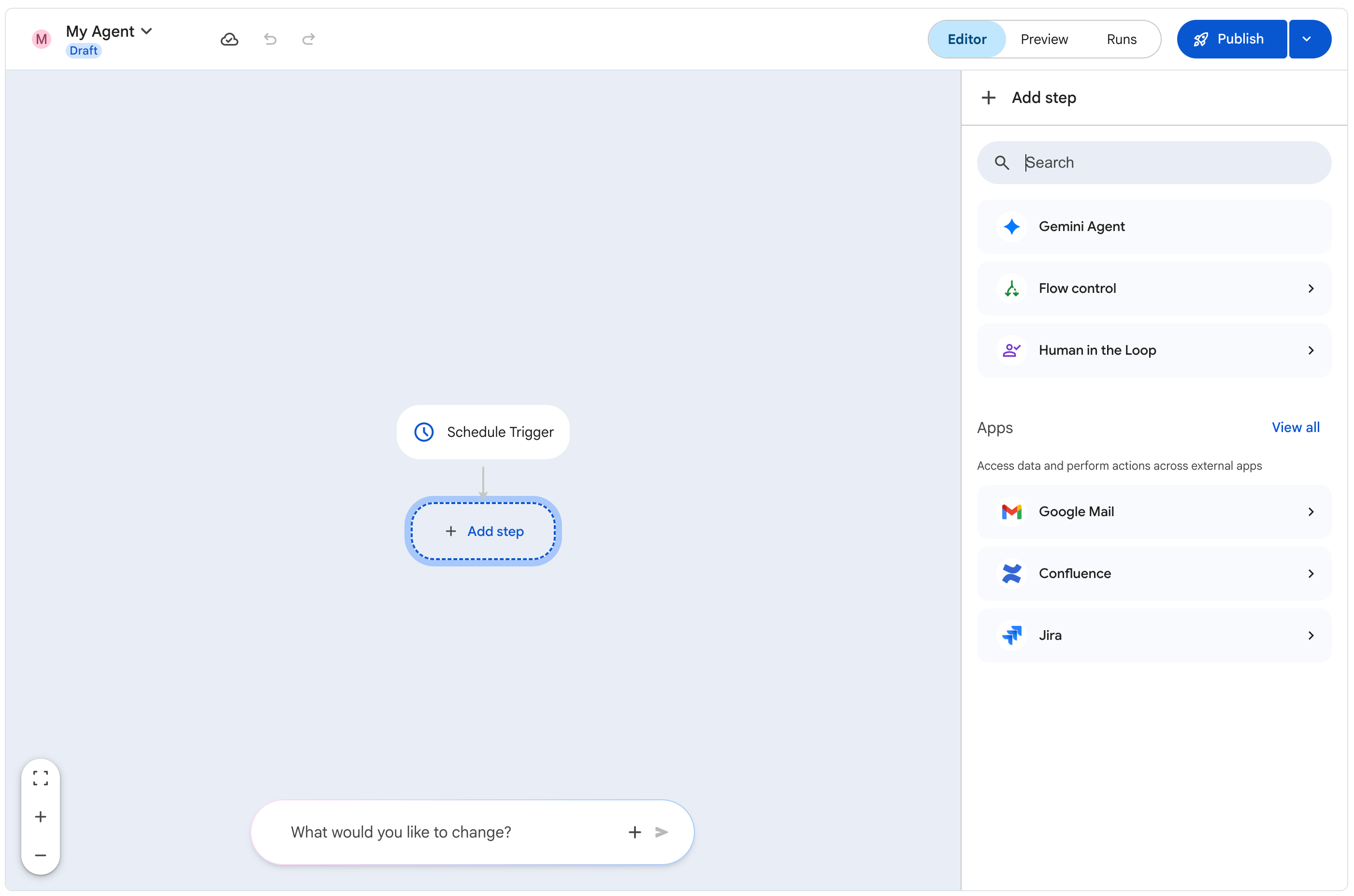
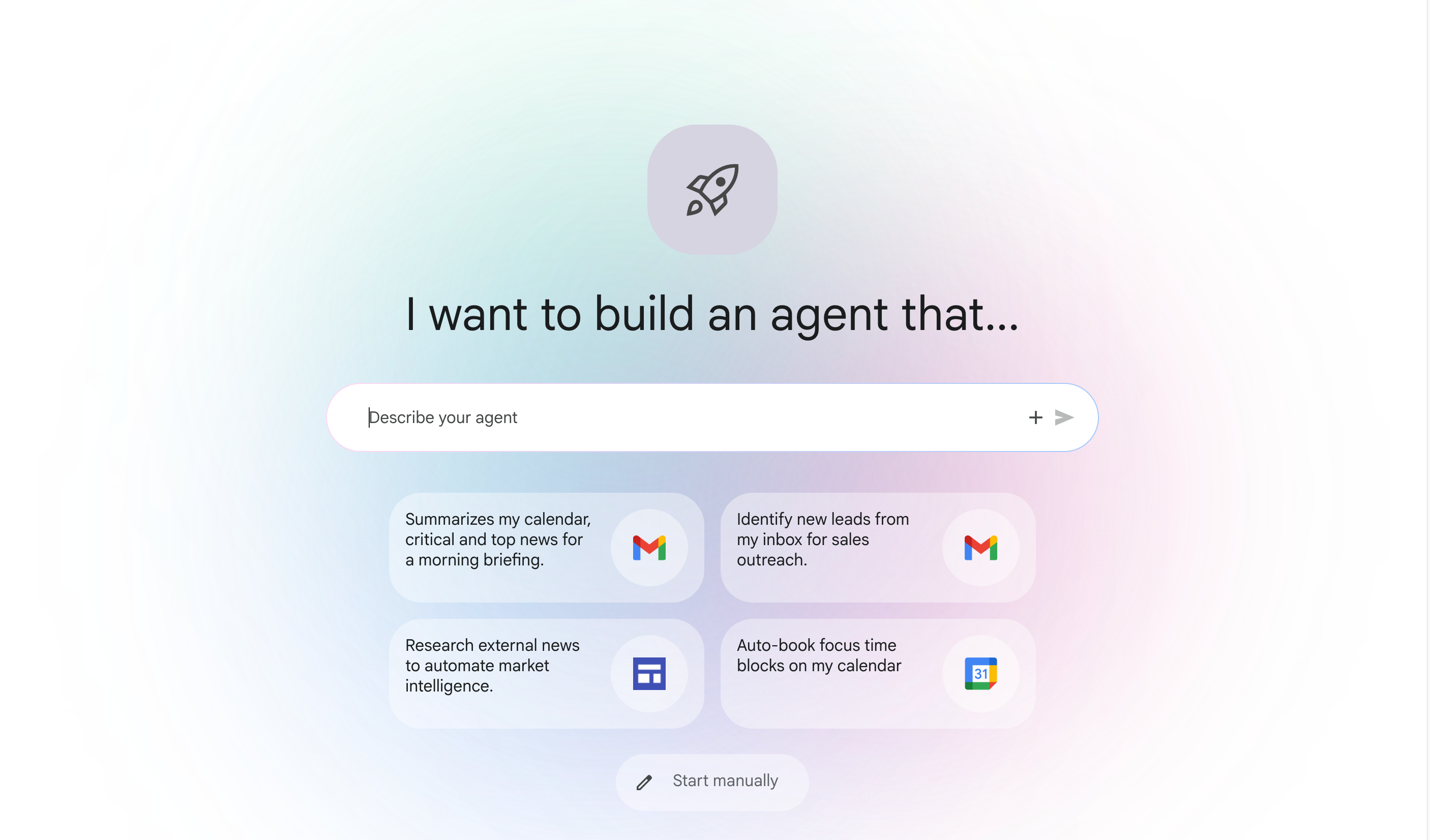
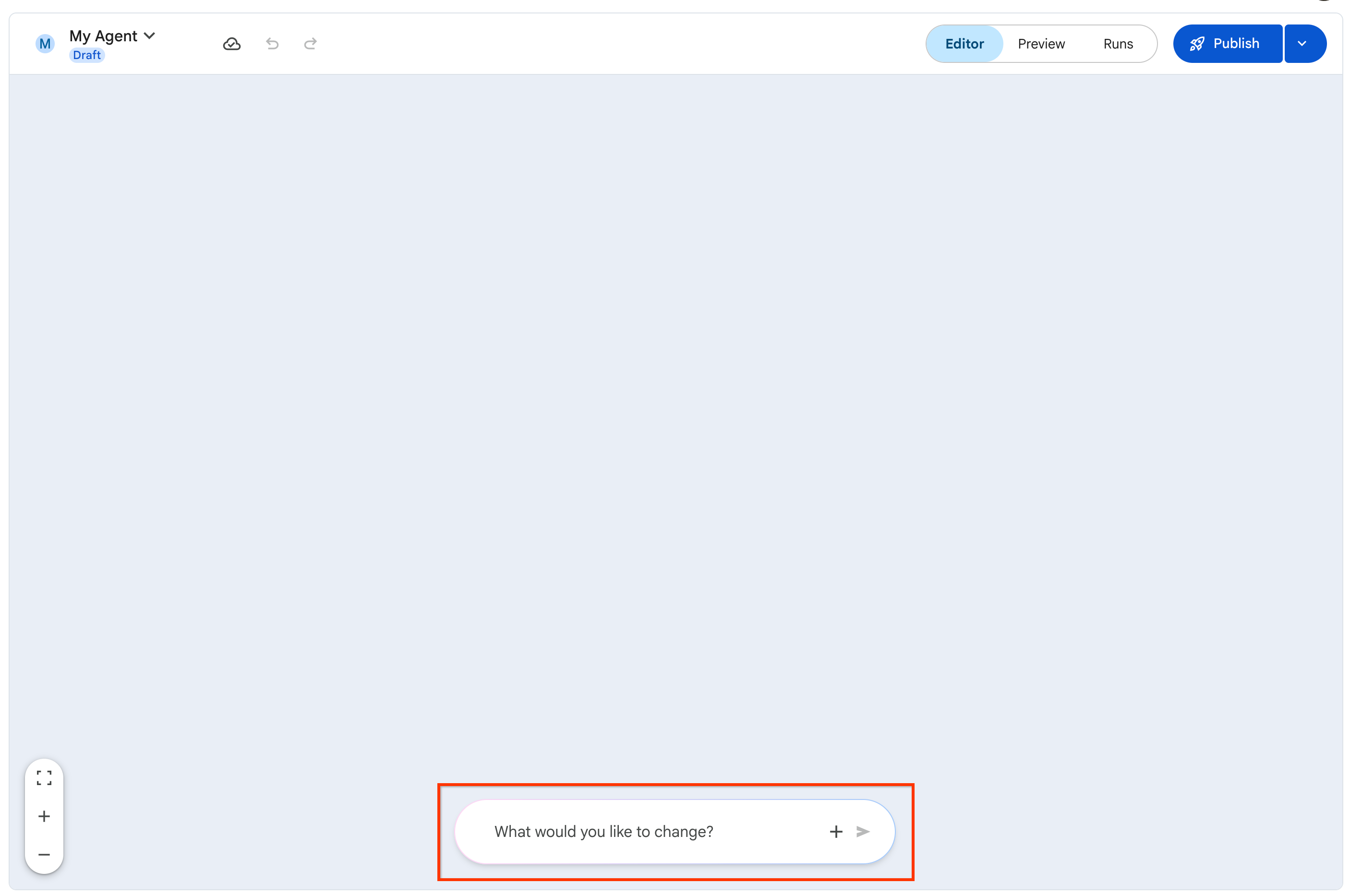
Workflow Builder offers a hybrid canvas that combines the ease of natural language prompts with the control of a visual editor.
Conversational designer: The conversational designer, accessible at the start of workflow creation and within the visual editor, provides a conversational interface to build and refine your workflow using natural language prompts. This is ideal for users who prefer a no-code development experience and want to use natural language to build their workflows.
Editor canvas: The editor canvas provides a visual representation of the workflow. It provides a logical flow of nodes that represent the steps and connections between them. The visual editor is ideal for users who want to refine the workflow logic, add conditional logic, and integrate with various tools and applications.
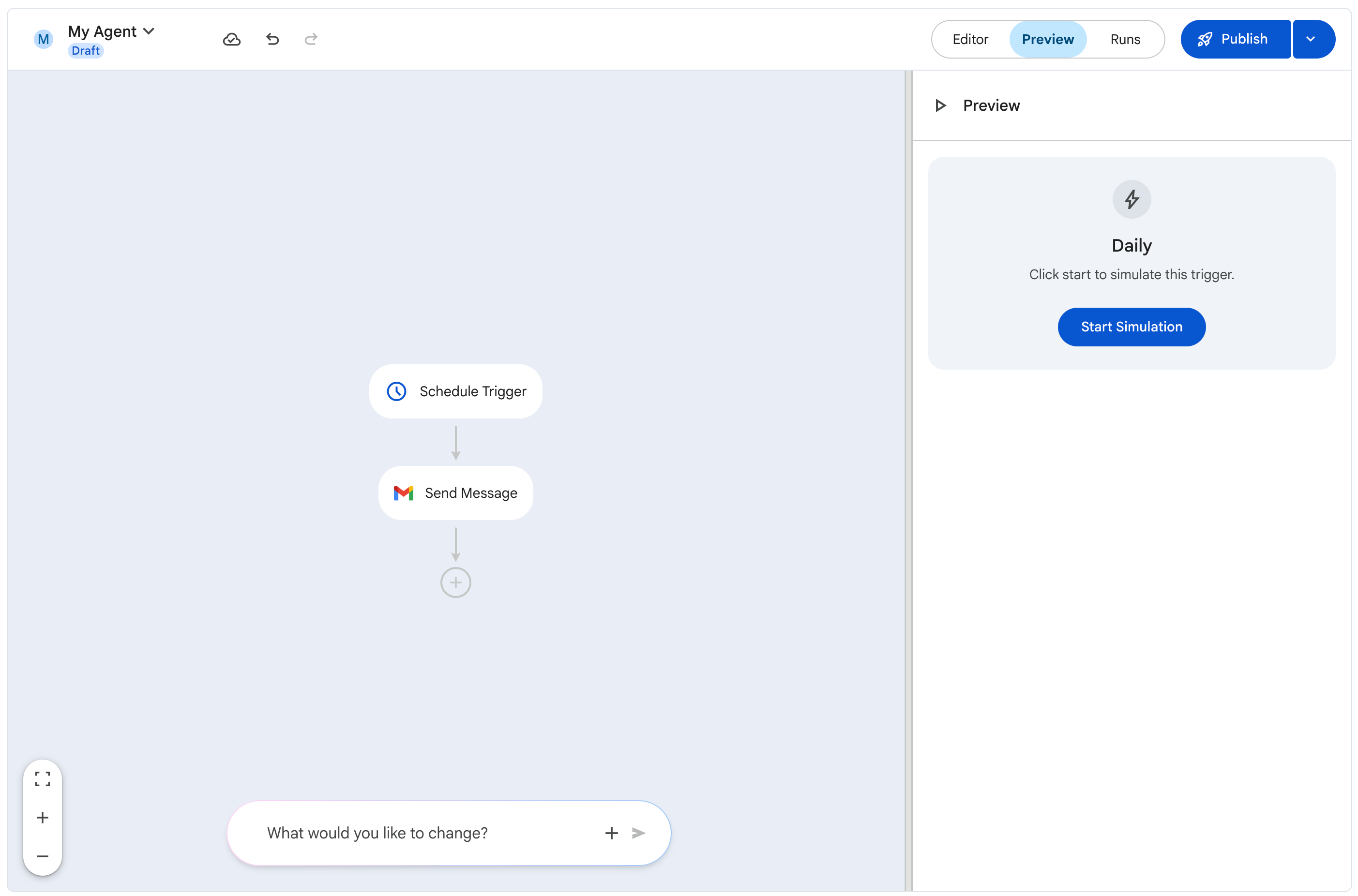
Preview: The preview tab provides a live preview of the workflow, letting you run simulations to test the workflow's flow and make any necessary adjustments.
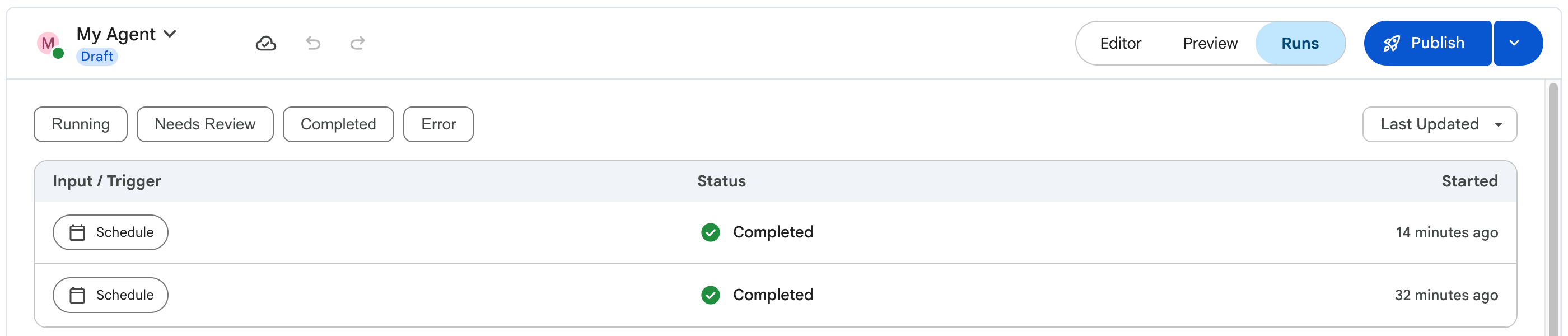
Runs: The runs tab provides a list of all the workflow runs, including the date and time of each run, the trigger that started the run, and the current status of the run.
Workflow components
A workflow consists of the following components:
- Triggers
- Steps
- Variables
Triggers
Triggers are events that start the execution of a workflow. The following table lists the supported triggers for workflows:
| Trigger | Description | Configuration fields |
|---|---|---|
| Manual trigger | Triggers the execution of the workflow agent on demand. Users can launch the workflow agent by entering @ and the workflow agent name from a Gemini Enterprise app chat prompt.
|
|
| Schedule trigger | Triggers the execution of the workflow at a specified frequency. |
|
| Event trigger | Triggers the execution of the workflow when data changes in a connected app. |
|
Steps
Steps are individual tasks that the workflow performs. Each step is executed in sequence, and the outcome of each step can influence the next step.
The following table lists the supported steps, categorized by the type of action that they perform:
| Category | Step | Description | Configuration fields |
|---|---|---|---|
| Agent nodes | Gemini Agent | An AI-powered agent that you can configure to read, reason, and respond based on predefined instructions. |
Input fields:
The response from the Gemini Agent is captured as a variable that can be passed as input to subsequent steps in the workflow.
|
| Flow control | Condition | Conditions are logical statements that determine how the workflow executes the steps. They define the criteria that must be met for a step to execute, and can be based on the outcome of previous steps or external data sources. |
Input fields:
|
| Human in the loop | Request info | Lets you request information from a human user. |
Input fields:
The questions that the user answered. |
Configure Agent node connected apps and actions
When you configure a Gemini Agent node, you can control which apps, connectors, and actions the agent can access at runtime. You can restrict the agent to read-only search operations or enable mutative write-back actions.
At a glance: Agent node action capabilities
| Capability | Action category | Selection granularity | Example use case |
|---|---|---|---|
| Search & query | Search For Data |
Per-action (toggle individual actions on or off) | Broad queries, looking up tickets, searching across knowledge bases. |
| Data modification | Add Or Update Data |
Connector-level (all-or-nothing toggle) | Creating tickets, updating issue status, sending emails. |
Attach and authorize a connected app
App
To attach a connected app to an agent node, do the following:
- In the workflow canvas, click the Gemini Agent node to open its configuration pane.
- Under Connected apps, locate the connector or app you want to attach (such as Jira, Gmail, or Google Drive).
- Toggle the connector switch to On.
- If this is the first time you or your organization is using the connector, complete the prompted OAuth authorization flow to grant the required permissions.
- Click the expand arrow () next to the connector name to turn on the actions supported by the connector.
Select action categories
Each connected application organizes its actions into two distinct categories:
- Search For Data: Actions that search, query, list, or retrieve records from the connected service.
- Granular action selection: Click the Configure icon () next to Search For Data to view all available search actions (such as
Search Events,List Events, orList Calendars). You can enable or disable individual actions independently. - Deterministic search filters: Limit search scopes by configuring filters using structured drop-downs or native query expressions, such as Jira Query Language (JQL), Confluence Query Language (CQL), Drive search queries, or Gmail search operators.
- In-line query testing: Validate your queries directly within the configuration pane to verify that your filters return the expected results before running the workflow.
- Granular action selection: Click the Configure icon () next to Search For Data to view all available search actions (such as
- Add Or Update Data: Actions that create, modify, send, or delete records in the target application (for example, creating a Jira issue or sending an email).
- Connector-level toggle: The mutative action toggle operates at the connector level. Toggling this on grants the agent access to all supported mutative operations for that connector.
Action dependency requirement
Example: Restrict an agent to read-only Jira search
App
The following example shows how to configure a Gemini Agent node to search Jira issues without allowing the agent to create or modify issues:
- In the workflow canvas, click the Gemini Agent node to open its configuration pane.
- Under Connected apps, toggle Jira to On (complete OAuth authorization if prompted).
- Click the expand arrow () next to Jira.
- Ensure the Search For Data toggle is On, and toggle Add Or Update Data to Off.
- Click the Configure icon () next to Search For Data, and verify that only the desired read-only search actions (such as Search Jira) are enabled.
Action resolution and runtime precedence
When the workflow executes, Gemini Agent selects and invokes actions based on the following precedence rules:
| Configuration state | Runtime action execution |
|---|---|
| Search enabled | Exposes standard list and retrieve actions for all enabled search operations. |
| Individual search action disabled | The specific search action is omitted from the agent's action catalog. |
| Add / Update data enabled | Exposes mutative actions alongside any enabled search actions. |
| Add / Update data disabled | All data creation, update, and deletion actions are blocked for that connector. |
Variables
Variables are values that can be passed between steps in a workflow. These values are generated as the output of steps, and can be used as input for subsequent steps.
Workflow versions
When you create a workflow, you can save it as a draft or turn it on. After you make the workflow live, you can create additional versions of the workflow, and save, compare, and restore them. Having multiple versions of a workflow can be useful in the following scenarios:
- You want to test a new version of the workflow without disrupting the existing version.
- You want to revert to an earlier version of the workflow.
For more information, see Manage workflow versions.
Known issues
The following are the known issues and limitations for workflows in this release:
- Natural language support
- Email template display issues
- Natural Language reliability
- Runs tab loading failures
- Connectors not showing after authorization
- Execution timeouts under heavy load
- Disabled actions failure
- Model recommendation
- Approval node formatting
What's next
- Learn how to create a workflow with natural language.
- Learn how to use workflow templates.
- Learn how to set up event triggers.
- Learn how to share a workflow.
- Learn how to manage workflow versions.